
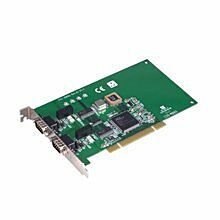
PCI-1680U-BE 2-port CAN Uni-PCI COMM Card w/I
PCI-1680U-BE
Frequently Asked Questions
The card is supported under Windows XP/7/8/10 and Linux. Refer to the software release note that ships with the driver for the specific OS versions supported.
The card is a PCI add-in card compliant with PCI Bus Specification 2.1/2.2. It uses Plug & Play, requires a single PCI slot, and addresses all serial channels in a continuous 32-byte I/O block. All channels can share a single PCI interrupt.
Depending on the model in the PCI communication card family, ports support RS-232 only or selectable RS-232/422/485, using an XR17V3xx UART with 256-byte FIFOs. Baud rates from 50 to 921.6 Kbps are supported, and any baud rate can be set.
Operating temperature is -10 to 60°C (14 to 140°F), operating humidity is 5-95% relative humidity (non-condensing), and storage temperature is -25 to 85°C (-13 to 185°F).
The card ships with Advantech ICOM Tools, a GUI utility for testing port performance. It lets you select ports, configure baud rate/data bits/parity/stop bits/flow control, run Normal or Loopback (Active/Passive) transfer modes, and monitor Rx length, transmission rate, and abnormal status in real time.
Windows supports up to 256 serial ports (COM1-COM256), and the device drivers provided with the card conform to the COMM API standard for use with Windows 7/8/10 and other supported versions.
Advantech provides a 5-year warranty from the date of purchase against defects in materials and workmanship, excluding damage from misuse, abuse, accident, improper installation, or unauthorized repair.
Yes. In RS-485 mode, the PCI communication cards automatically sense the direction of data flow and switch transmission direction, so no handshaking signals are required. A two-wire RS-485 network can be built, and this control is transparent to the software.
How-to Guides
- Install the software driver first (see the driver setup steps) before installing the hardware, to ensure a smooth installation.
- Turn off the computer and all peripheral devices.
- Disconnect the power cord and any other cables from the back of the computer.
- Remove the PC cover.
- Install the PCI communication card into an available PCI bus slot.
- Replace the PC cover and reconnect the cables disconnected earlier.
- Turn the computer on; the driver will install automatically.
- Test the COM port and verify normal operation using ICOM Tools.
- Refer to the pin assignment and cabling information for wiring peripherals.
- Insert the driver DVD into the drive.
- The setup program should launch automatically; if AutoPlay is disabled, run autorun.exe from the DVD using Windows Explorer or the Run command.
- On the setup screen, click
Continueto open the catalogue select page, then clickInstallationto view installation options. - Choose the driver you want to install and click the corresponding hyperlink to install it.
- Open the Start Menu folder for the ICOM driver.
- Click
Uninstalland follow the on-screen prompts to remove the driver.
- Launch ICOM Tools from Start/Programs/Advantech PCI Comm Tools/COM Examine Tool.
- Click
Selecton the Port menu, or press the Port Select toolbar button, to open the Select Port dialog. - Check the box or double-click the port name(s) you want to test; selected ports appear in the Selected Ports panel.
- Click
OKto open the port's configuration tab. - Press the Port Setup (or All Ports Setup) button to configure baud rate, data bits, parity, stop bits, and flow control, then click
OK. - Press the Run button (or All Ports Run) to start the test; results appear in the Performance panel (Rx length, transmission rate, last abnormal status).
- Press the Stop button when finished, then Close the port or Exit the utility.
- Connect the Data+ and Data- lines between devices; RS-485 mode only requires these two wires since the card automatically senses data direction and switches transmission accordingly.
- No handshaking wiring (RTS) is required because direction control is handled transparently by the card.
- Set the onboard termination resistor jumper (120 or 300 Ω) at both ends of the bus if needed to stabilize communication, especially in electrically noisy environments.
| Manufacturer | Advantech |
|---|
-
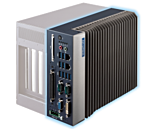 MIC-7500 Advantech MIC-7500 Intel 6th Generation Core i Processor Compact Fanless System
Starting at $1,480.00
- MIC-7500 Advantech MIC-7500 Intel 6th Generation Core i Processor Compact Fanless System
Starting at $1,480.00